Vertical live streaming for TikTok, YouTube Shorts and Instagram
A phone shows a tall, narrow picture with buttons and comments on top of it. A good vertical stream is built for that: big face cam, the important part of the game, and nothing hidden behind the app’s buttons.
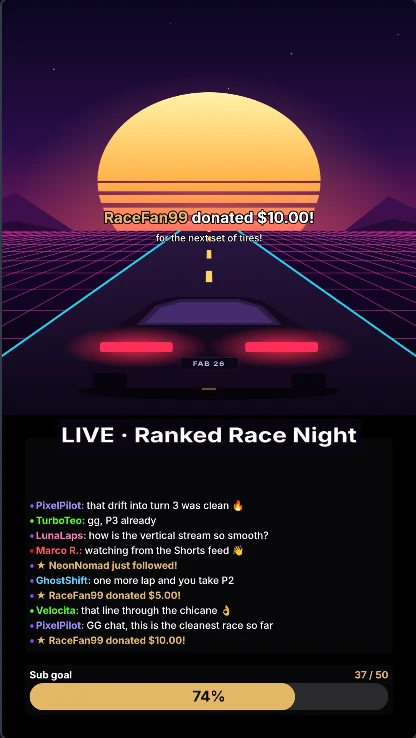
A layout that works on a phone
- Camera on top, about a third of the height – faces carry vertical streams.
- Game below, cropped to the action: the crosshair area, the car, the board – not the whole 16:9 screen shrunk down.
- Text and alerts in the middle: the top edge holds the platform’s header, the bottom and the right side its comments and buttons.
Step by step in FabStream
- Switch the preview to Vertical or Dual. The 9:16 canvas is 1080×1920 and belongs to every scene.
- Turn on Safe zones. The preview header shows where TikTok, Shorts and Reels put their buttons and comments.
- Place camera and game. Drag and resize; hold Alt on a handle to crop the game to its centre. Snapping lines help to align.
- Add the platform to the 9:16 format. TikTok LIVE: server and key from LIVE Center (new for every stream). YouTube: a vertical stream from YouTube Studio. Instagram: key from Live Producer.
- Go live and save clips. The replay buffer saves your best moment as a 9:16 clip with one key – ready to post as a Short or TikTok.
Frequently asked questions
Which resolution is right for vertical live streams?
1080×1920 (9:16) at 30 or 60 fps with about 6 Mbit/s. FabStream sets this for you; the Free plan goes up to 1080p at 60 fps.
Can every TikTok account stream from a PC?
No. TikTok shows the server URL and stream key only to accounts with LIVE access (in LIVE Center), usually from about 1,000 followers. YouTube and Instagram (Live Producer) give you a key without that limit.
Do I lose my horizontal stream when I go vertical?
No. In FabStream the vertical picture is a second format next to the 16:9 one – both run at the same time from the same scene.
Try it on your next stream
Free for Windows 10/11 – no account, no watermark, no time limit.