How to stream to TikTok and Twitch at the same time
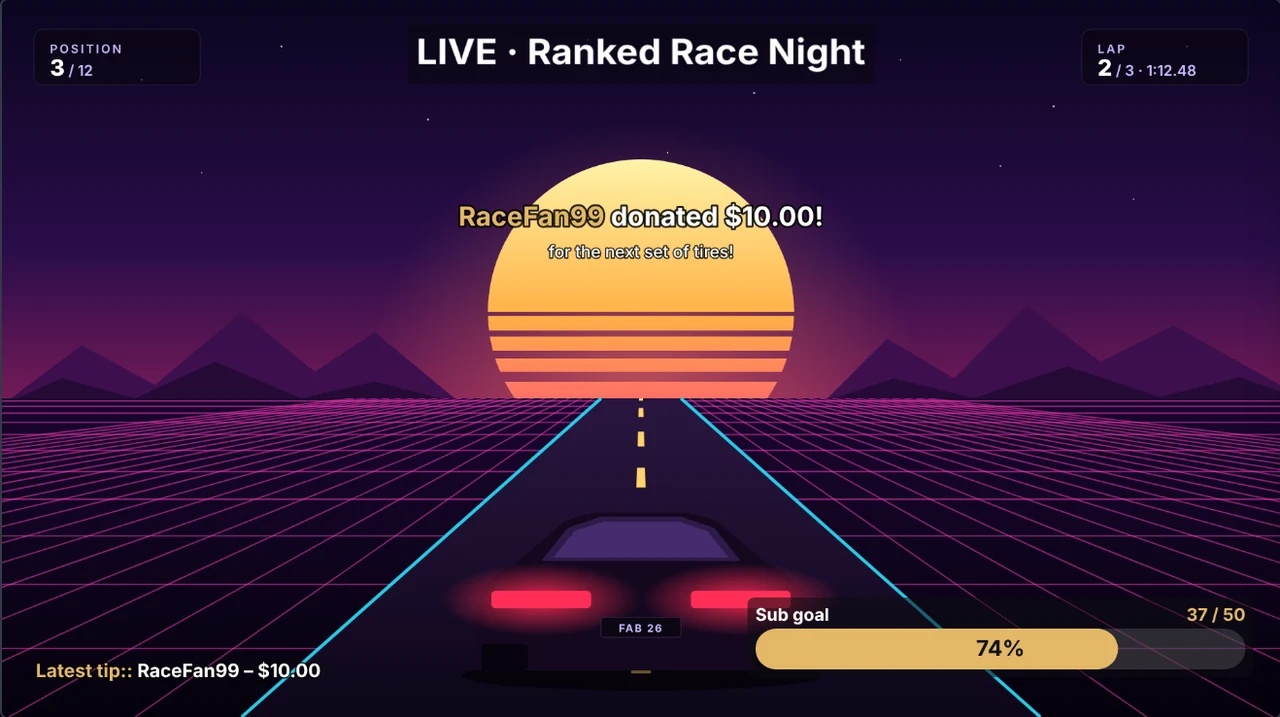
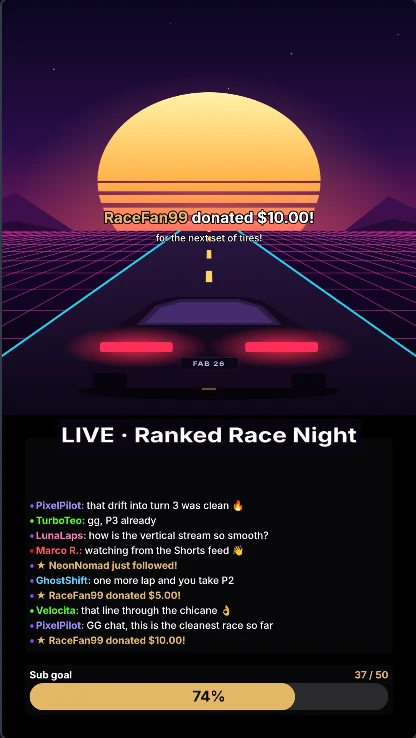
Twitch wants a wide 16:9 picture, TikTok LIVE a vertical 9:16 one. With FabStream you build your scene once and go live on both – from one Windows PC, each format with its own layout, in a single click.
What you need
- A PC with Windows 10 or 11 (64-bit). A graphics card with NVIDIA NVENC, AMD AMF or Intel Quick Sync encodes both formats with little load.
- About 6 Mbit/s upload per destination at 1080p – around 12 Mbit/s for Twitch and TikTok together.
- A Twitch account and a TikTok account with LIVE access (TikTok shows the stream key to accounts with LIVE access – usually from 1,000 followers).
Step by step
- Install FabStream. Download it free and run the installer – no account and no admin rights needed. The setup assistant measures your PC and your connection and sets both formats to the best quality they deliver.
- Build your scene. Add your game, camera, alerts and chat. FabStream shows the 16:9 and the 9:16 picture side by side – arrange each one on its own, for example the camera above the game in 9:16 and in a corner in 16:9.
- Add Twitch to the 16:9 format. Sign in with Twitch, or copy the primary stream key from your Twitch dashboard (Settings → Stream) and paste it.
- Add TikTok LIVE to the 9:16 format. In TikTok LIVE Center set a title, click “Go LIVE” or “Save”, then copy the server URL and the stream key into FabStream. TikTok creates new ones for every stream, so repeat this before each stream.
- Check the TikTok safe zones. Switch on Safe zones above the 9:16 preview: FabStream shows where TikTok places its buttons and comments, so your face cam and alerts stay visible.
- Go live. One click on Go live starts both streams. The status bar shows bitrate and dropped frames for every destination.
Tips for a clean dual stream
- Use hardware encoding (NVENC, AMF or Quick Sync): two formats then cost hardly any frames in your game.
- Keep text and alerts in the middle of the 9:16 picture – that is the area every phone shows in full.
- Turn on the replay buffer: one key saves your best moment as a clip in 16:9 and 9:16 – ready for YouTube Shorts and TikTok.
Frequently asked questions
Do I need two PCs or two programs?
No. FabStream renders your scene once and sends it to Twitch in 16:9 and to TikTok in 9:16 from the same PC, with one click on Go live.
Is streaming to TikTok and Twitch at once free?
Yes. The free plan streams to one platform per format – Twitch in 16:9 and TikTok in 9:16 – up to 1080p at 60 fps, without watermark or time limit.
Where do I find my TikTok stream key?
In TikTok LIVE Center (livecenter.tiktok.com/producer): set a title, click “Go LIVE” or “Save”, then copy the server URL and the stream key. TikTok shows them to accounts with LIVE access, and they change with every stream.
Can I add YouTube, Kick or YouTube Shorts as well?
Yes. Premium streams to up to 3 platforms per format, Ultra to up to 8 per format – for example Twitch, YouTube and Kick in 16:9 plus TikTok, YouTube Shorts and Instagram in 9:16.
Try it on your next stream
Free for Windows 10/11 – no account, no watermark, no time limit.